Dashboard
Completion requirements
TalentCentral dashboards provide insight into the usage of products across your company by visually displaying the data using a variety of different modules.
Creating a Dashboard
- Select Dashboard from the Menu Bar.
- Click on Create New. This will create a blank untitled dashboard which you can name and configure.
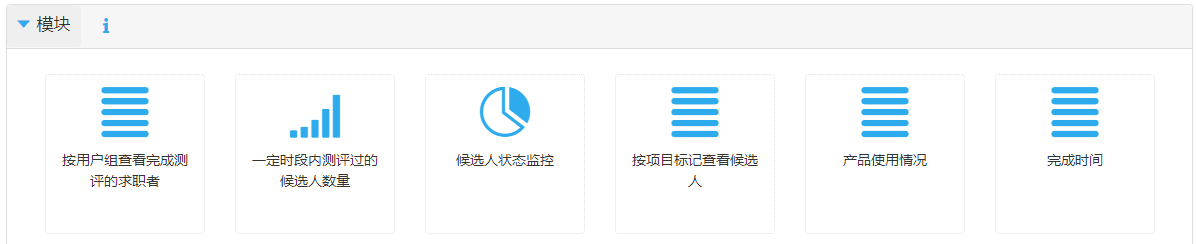
- Several Modules can be added to a Dashboard. Double click a Module to add it to a Dashboard.

Customize a Dashboard
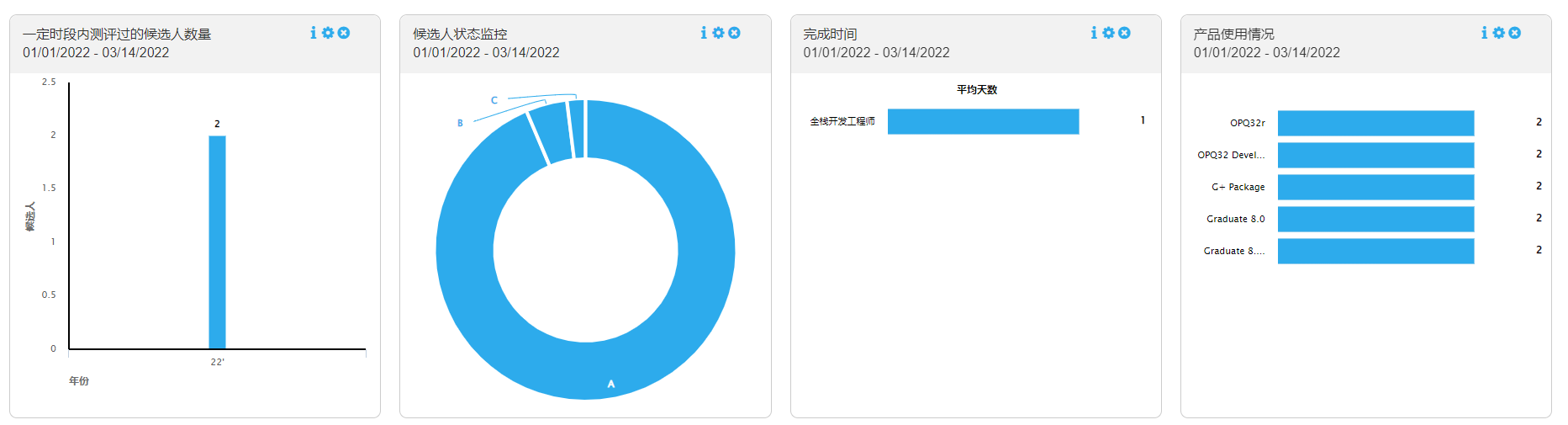
You can create and rename multiple dashboards as required. The layout can be customised by resizing and rearranging modules.
- Select the information symbol for further details on a module.
- Select the cog symbol to edit a module’s settings and date range.
- Select the cross symbol to delete the module.
- Global Settings allows you to apply the same date range to all modules displayed on the dashboard page.
- To save a dashboard click Save on the right hand-side.

Dashboard Modules on the Homepage
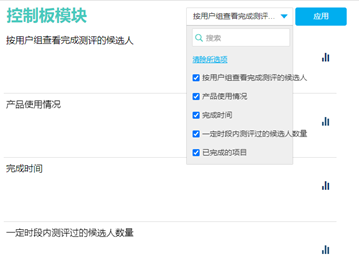
You can quickly access the same data and statistics about your system on your homepage.
- Select Choose Modules on the top right of the section.
- Select the desired Module to display.
- Click Apply.
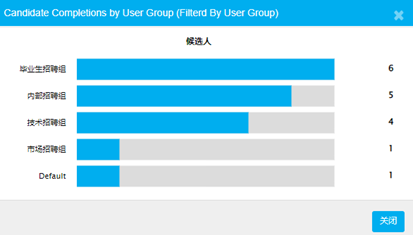
- Click the icon displayed on the bottom right handside of the module box to view more detailed information such as graphs or reports.